The ONEDC user interface is an intuitive user-friendly interface that shows information and helps you navigate to activities.
The Dashboard is the first page you see when you log in and provides a summary of the current state of your requests, and lets you navigate to different areas in the Portal.

The Dashboard has the following areas:
|
Area |
Description |
|
|
ONEDC Home |
Click the ONEDC image to return to the main Dashboard. |
|
|
Main Menu |
Menus and sub-menus to access ONEDC activities:
NOTE: Certain elements are limited to approved user groups. If you cannot see or access a menu item, contact your customer administrator to request permission to the group. |
|
|
The Search magnifying glass icon in the menu bar opens the global search window. |
||
|
User Information |
Located in the top right corner, the User Menu |
|
|
Shows important Notifications and Alerts about your racks and tenancy.
|
||
|
Information about the current user. |
||
|
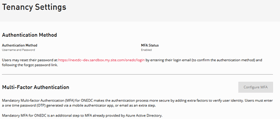
Settings |
Authentication information including Multi-Factor Authentication (MFA):
|
|
|
Welcome Message |
Shows the currently logged-in user and a summary of your current requests:
|
|
|
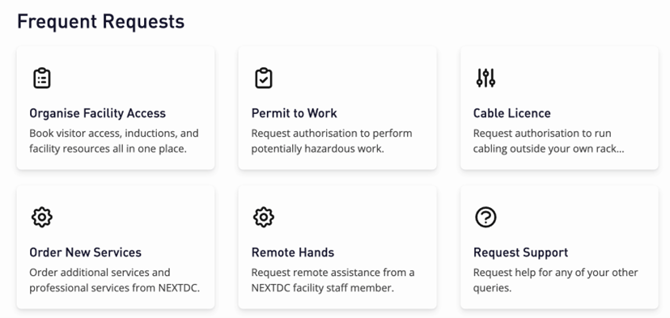
Frequent Requests |
Quick links to frequently used activities.
|
|
|
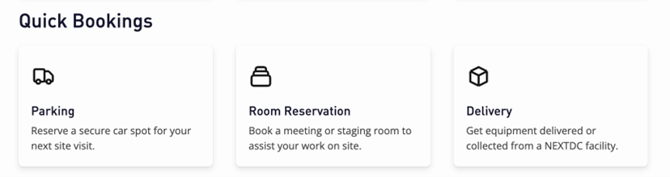
Quick Bookings |
Quick links to frequently-booked resources including parking, staging rooms, meeting rooms, and pickups and deliveries.
|
|
|
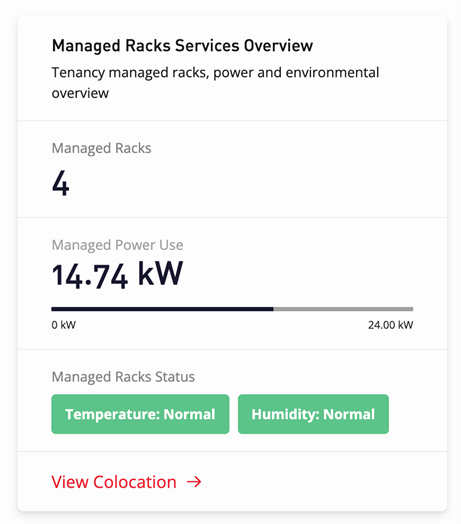
Managed Racks Services Overview |
The summary of managed racks including racks, power usage and environmental information for the current tenancy.
|
|
|
Links to knowledge that is commonly used and step-by-step work instructions to perform tasks.
|
||
|
NEXTDC Menu |
Links to NEXTDC information and the NEXTDC corporate website.
|
|

 shows: