The rack visualisation feature allows you to improve planning and visualisation of your data centre rack configurations to provide insights into space, power needs and possible configuration options.
NOTE: All actions within ONEDC Visualisation are strictly visualisation only.
For example, if you remove a device from a power rail, this is not actually happening in real life, but only in your simulation.
The rack visualisation tool shows a front and rear view of the rack and allows you to add devices to the rack to reflect infrastructure deployed or in planning.
Rack visualisation shows:
- Installed devices
- Rack access logs
- Rack audit history
- Rack summary (inc. telemetry data for temperature and humidity)
- Rack power information (inc. power rails and estimated power).
- Rack utilisation metrics
- Device tags
You can collapse and expand the Estimated Power, Metrics and Tags information if required. Click Minimise and Maximise to show information:
By default, visualisation shows the rack labels. You can optionally show device labels and images by adding these to the device templates if they are not already present.
The Rack Installation Best Practice Guide provides guidance on the optimal setup for your racks including how to avoid single points of failure.
To access rack visualisation:
- In the Main Menu select Services » Colocation.
- Click to select the rack. You can also search and filter to locate a specific rack.
- Select the action:
|
Action |
Information |
|
Show warning information |
To show simulated warning information, hover over the Information icon (the letter i in a circle).
|
|
Click Request Remote Hands. If you request Remote Hands assistance from the Rack Visualisation page, ONEDC automatically populates the Facility and rack information in the request. |
|
|
To update information for the rack, click Manage Rack. |
|
|
Show a “view only” summary for a specific device |
Click a device to see a summary of that device. It is view only in this screen. Devices may show multiple tabs on this screen. Click Manage Modules within Chassis to manage modules for chassis devices. Open the IP Allocations tab to manage IP allocations for a network. To edit the device information, click the device link. Click |
|
To add devices to the rack. |
|
|
Click the device to open. Click Manage Modules within Chassis. |
|
|
Show the previous and next rack |
Click < to show the previous rack in the tenancy. Click > to show the next rack in the tenancy. NOTE: You must have appropriate permission to view racks. If you cannot view a rack, contact your Customer Administrator. |
|
Click Unlock Front or Unlock Back |
|
|
Power rails distribute electrical power to various devices in racks |
|
|
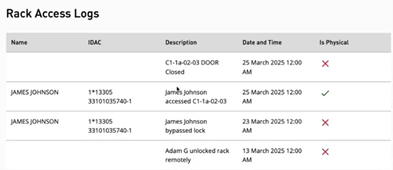
Rack access logs |
Rack access logs record when racks were accessed:
Rack access logs show the name of the individual accessing the rack, their IDAC and the date and time of access. NOTE: Is Physical shows whether the access was physical access or virtual access. |
|
Show and create rack audits |
Use rack audits to record information about the rack (e.g. last visual inspection, etc.). NOTE: You can only create a rack audit; you cannot edit or delete a rack audit. To show rack audit information:
NOTE: For Notes that exceed the display space, click -> to show the full Note. To create a rack audit:
|
 to close the “view only” summary