
A chassis is a metal frame device that can hold multiple different modules. You can allocate modules to slots in chassis devices.
NOTE: Chassis devices have limits on the number of modules you can add, the weight of the modules and the combined module power usage. ONEDC validates the chassis information to ensure the modules fall within the limits.
When you add, update or delete a module, ONEDC updates this information in the Metrics area:
By default, ONEDC shows the Edit  button on the device management page. However, if the device has modules installed, you must remove the modules before you can edit the device:
|
Chassis device with no modules installed – Edit button available |
Chassis device with modules installed – Edit button not available |
|
|
|
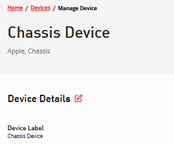
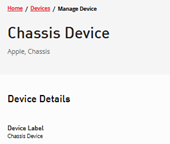
For example, to change the number of module slots, you must remove all modules and then update the number of module slots, and then add the modules.
You can manage chassis modules when you create a new device or a create a new device template.
To manage chassis module information:
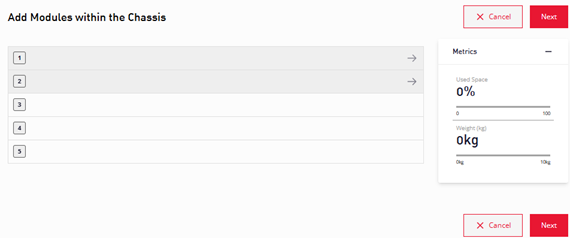
NOTE: This example has 5 chassis modules. Your chassis may have a different number of modules.
- Select Services » Devices.
- Search and open the chassis device.
- Click Manage Modules within Chassis.
- ONEDC shows the chassis modules:
- Update the information:
CAUTION: If you exceed the chassis restrictions, ONEDC shows a warning message:
You must resolve all errors.
|
Action |
Information |
|
Add a module to a slot – existing device |
1.Click the slot to add a module. 2. Select Select from existing devices. 3. Select the Device from the dropdown. 5. ONEDC installs the module in the chassis device and updates the Metrics information to reflect the new module:
|
|
Add a module to a slot – from a template |
1. Click the slot to add a module. 2. Select Create a new device from an existing template. 3. Enter the information. 4. Click Save to select the device or click Cancel to quit without saving. 5. ONEDC installs the module in the chassis device and updates the Metrics information to reflect the new module. |
|
Remove a module from the chassis |
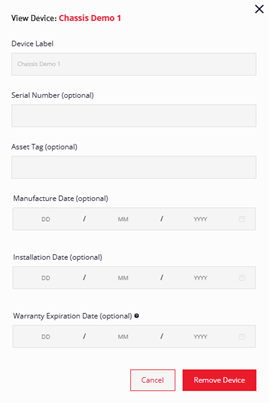
1. Click the module to remove: 2. Click Remove Device. 3. ONEDC removes the module and shows a confirmation message. 4. Click Okay to continue. 4. ONEDC shows the device page and updates the Metrics information. |
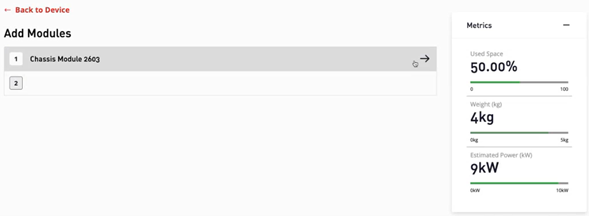
NOTE: Click the device module link to manage the device:
