
To perform potentially hazardous work at a NEXTDC facility, you must have an approved Permit to Work. You can also request NEXTDC to engage a qualified and reputable contractor to perform work on your behalf.
IMPORTANT! Hazardous work is any work that:
- Produces dust
- Produces heat
- Is electrical
- Is in a confined space work
- Involves external cabling installation or related activity
- Is planned/preventative maintenance
- Requires isolation of NEXTDC fire detection systems
You can submit PTW requests via the:
- Home Page – in the Frequent Requests area, or
- Via the Main Menu clicking Requests » New Request using the tile in the Facility Access area
Before submitting your PTW, you may wish to contact our Facility Operations team to discuss the work you intend to conduct. The team can meet you for an on-site walkthrough to discuss your scope of work.
PERMIT TO WORK RULES:
- All PTW requests must be submitted at least 7 days prior to the planned work commencement date to allow sufficient time for review and approval by the NEXTDC City Facility Manager. PTW submitted less than 7 days in advance may result in delays to your planned work commencement date.
- PTW Requests can be granted for up to a maximum of 1 month in duration.
- Each PTW requests cannot exceed 90 days, but multiple requests can be made for successive periods.
- All works must be completed by staff or contractors with a valid induction who have completed the Elevated Risk Module. ONEDC automatically submits induction requests for users without valid inductions.
- As part of the process, customers must sign the PTW document via Docusign.
NOTE: A PTW is included as part of the Cable License and does not need to be requested separately. You do not need to raise a separate Access Request. Once approved, the one ticket number covers the Cable License and access for visitors listed on the request.
To request a PTW:
- In the Main Menu select Requests » New Request and click the Permit to Work
- Select the Facility and use the Calendar in Work Details to specify the period of work.
- Select the applicable options in Work Specifications. You must select at least one option.
- Click Next to continue or click Cancel to quit without saving.
- Enter the Visitors and Primary Contractor The Primary Contractor must appear in the Visitors list. You can also Invite a new ONEDC user/add a new contact if needed.
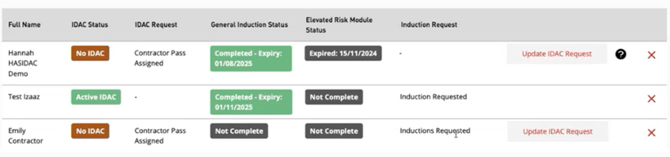
ONEDC checks the inductions and Elevated Risk Modules are current. In this example, the user “Hannah” needs to renew their induction, the user “Test Izaaz” has not completed the Elevated Risk Module so this induction has been requested, and the user “Emily” also requires an induction. ONEDC automatically submits the induction requests:
Click
 to show additional notes and warnings:
- Click Next to continue or click Cancel to quit without saving.
- Use the File Manager to add the related documents:
- Scope summary (optional)
- Scope of Work (SoW) – provide as much detail as possible on the work you intend to carry out, including required areas of access
- Safe Work Method Statement (SWMS) – provide all necessary SWMS required for the work (e.g. SWMS for Cable installation, SWMS for equipment rack installation).
- Valid Certificate of Currency and Insurance – provide all necessary insurances (e.g. Public Liability, Professional Indemnity, Workers Compensation, etc.).
NOTE: You can also submit additional documentation to support your request (e.g. project scope, cabling diagrams, Method of Procedure (MOPs), Procedures, Work Instructions (WIs), etc.).
- Click Next to continue or click Cancel to quit without saving.
- ONEDC shows a summary of the request. The Related Requests section includes the induction requests.
- Confirm the information is correct and click Submit to submit the request or click Cancel to quit without saving.
- ONEDC submits the request and shows a confirmation message.
- Click Okay to acknowledge the message.
- NEXTDC staff will action the request and provide updates via the ticket number. You can review the request via My Requests.
- When NEXTDC has processed the request, you will receive an email with a Docusign link to sign to approve the PTW.