
ONEDC includes power connection information for powered devices so you can assign power connections to power rails and power sockets.
NOTE: When you update power connections, ONEDC also updates the computed power, based on which device is pulling power from which power rail. This can assist with pinpointing devices that are vulnerable to single point of failure.
Powered devices have a number of Power Supply Units (PSUs) (also called “sockets” or “power sockets”) that convert the Alternating Current (AC) power from an electrical outlet into the Direct Current (DC) power required by the device.
Each powered device has multiple PSUs that connect to a socket number on the power rail.
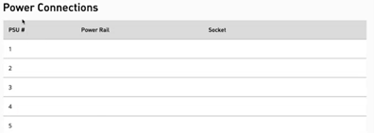
When you add a new device, the device is awaiting installation in the rack and has no power connections:
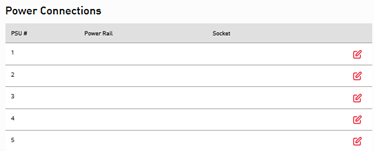
After installing the device in the rack, you can add the power connections:
CAUTION! Single point of failure occurs when devices are not sufficiently supported by multiple supplies of power. A power failure can occur anywhere in the power set-up; with power feeds, power distribution boards, or power rails, which can result in downtime for connected devices. The solution to avoiding single point of failure vulnerability is to intelligently plan your rack configuration.
Use the ONEDC rack visualisation tools to help identify areas that are vulnerable to single point of failure.
To manage power connections for powered devices:
- Select Services » Devices.
- Search and open the device.
- In the Power Connections section:
|
Action |
Information |
|
Connect a power socket to a power rail |
NOTE: When connecting sockets to a power rail, ONEDC only shows the unconnected sockets. To connect to an existing socket, you must disconnect the socket and then re-connect to the selected power rail. 1. Click Edit. 2. From the dropdown, select a Power Rail. 3. Enter the power socket information. 4. Click Save to connect the power socket to a power rail or click Cancel to quit without saving. 5. ONEDC connects the power socket. |
|
Edit a power socket |
1. Locate the PSU and click Edit. 2. Edit the power socket information. 3. Click Save to update information or click Cancel to quit without saving. 4. ONEDC updates the power socket. |
|
Disconnect a power socket |
1. Locate the PSU and click Disconnect. 2. ONEDC confirms you want to disconnect the socket. 3. Click Confirm to disconnect the socket or click Cancel to qui without saving. 4. ONEDC disconnects the socket. |