
You can manage network connections when you create a new device or a create a new device template.
This section includes information on managing IP Allocations for devices.
NOTE: To manage IP allocations for a network, see Manage IP Allocations for a network.
RULES: You can only add network connections between ports of the same type. For example, you can only connect an LC port to another LC port, and you can only connect an RJ45 port to another RJ45 port.
To manage network connections for a connected device:
- Select Services » Devices.
- Search and open the device.
- In the Network Connections section, ONEDC shows the number of free ports:
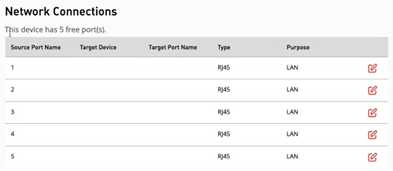
NOTE: When you add a new device, the device has no network connections configured.
After installing the device, you can update the information.Action
Information
Add a network connection
1. Click Create.
2. Enter the information.
3. Click Save to add the IP Allocation information or click Cancel to quit without saving.
Edit a network connection
1. Select the network connection and click Edit.
2. ONEDC shows the Update Network Connection page.
NOTE: The Target Device and Target Port Name are set as read only.
After you install a device in a rack, you can update the information.3. Enter the network connection information.
4. Click Save to update the network connection information or click Cancel to quit without saving.
5. ONEDC updates the network connection information.
Unlink a network connection
1. Select the network connection and click
 .
.2. ONEDC confirms you want to unlink the connection.
3. Click Save to unlink the network connection or click Cancel to quit without saving. - You can also manage IP Allocations for the device:
NOTE: To manage IP Allocations for a network, see Manage IP allocations for a network.
Action
Information
Assign an IP or IP range to the device
1. Click Create.
2. Enter the information.
3. Click Save to add the IP Allocation information or click Cancel to quit without saving
Edit an IP or IP range for the device
1. Select the IP Allocation and click Edit.
2. Update the information.
3. Click Save to update the IP Allocation information or click Cancel to quit without saving.
Delete the IP or IP range for the device
1. Select the IP Allocation and click x.
2. ONEDC confirms you want to delete the IP Allocation.
3. Click Confirm to delete the IP allocation or click Cancel to quit without saving.
4. ONEDC deletes the IP Allocation.