
Device tags are user-defined terms for a device. For example, you can add tags to identify new devices, test devices, groups of devices (e.g. Test, Development, Project 1), etc.
RULES:
Device tags are user-defined and are shared across all devices in the tenancy.
Each device can have multiple device tags.
If you remove a tag from a device and the tag is not assigned to any other devices, ONEDC deletes the tag. The tag will not appear in the dropdown tag list when adding a tag.
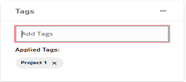
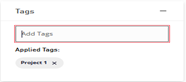
ONEDC shows device tags when you edit the device:
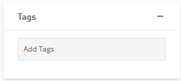
To manage device tags:
- Select Services » Devices.
- Search and open the device.
- In the Tags section, you can manage tags for the device:
|
Action |
Information |
|
Show and hide the Tags area |
To minimise the Tags area click - To maximise the Tags area click + |
|
Add a new tag |
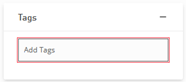
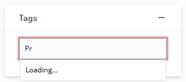
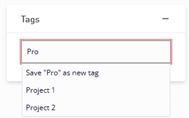
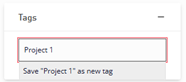
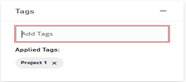
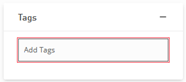
1. In the Tags area, click to add a tag: or select Save as new tag create a new tag: 2. ONEDC adds the tag and assigns the tag to the device: |
|
Assign an existing tag to a device |
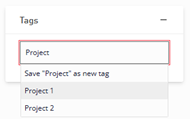
1. In the Tags area, click to add a tag: 3. ONEDC assigns the tag to the device: |
|
Remove a tag from a device |
1. In the Tags area, select the tag to remove: 3. ONEDC shows a confirmation message. 4. Click Confirm to remove the tag from the device or click Cancel to quit without saving. 5. ONEDC removes the tag from the device. |
 .
.