
When adding a device template, first add the template and then edit the template to upload images if required.
For devices with multiple network ports, you can configure the port information when:
- Creating the device template or
- Editing the device template once created.
To add a new device template:
- Select Services » Devices.
- Click View Device Templates.
- ONEDC shows the device templates.
- Click Create.
- Enter the information.
Field
Information
Model
Device model
Type
Device type (e.g. black box)
Height (RU)
Device height in Rack Units (RU)
Weight (kg)
Device weight in kilograms
Vendor
Select the Vendor from the drop-down list.
NOTE: If the vendor does not exist, click Add Vendor to add a new vendor.
Enter the Vendor Name and click Save to create the vendor or click Cancel to quit without saving.
ONEDC creates the vendor and shows a confirmation message.
Click Okay to continue.This is a powered device

This is a connected device
This is a chassis device
Description
Optional device template description
- Click Save to add the device template or click Cancel to quit without saving.
NOTE: If creating a connected device with multiple ports, you can configure the network ports in the template now or later: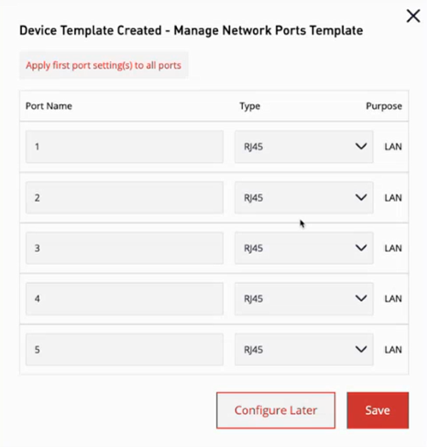
Update the Port Name and Port Type if required and click Save or click Configure Later to configure the ports later.
- Click Save to add the device template or click Cancel to quit without saving.
- ONEDC adds the device template and shows a confirmation message.
- Click Okay to return to the Device Templates page or click Manage to review and update the device template.
You can update the information inc. upload device images, edit network ports, add chassis modules). - ONEDC shows the devices assigned to the template:
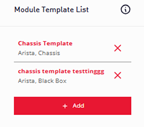
You can now assign a device template to a device.