
You can create the following types of devices:
|
Black Box Cable Organiser Chassis Console Fibre Channel Switch Generic Modem |
Network Chassis Network Router Network Security Network Switch Network Wireless Patch Panel Power Distribution Unit (PDU) Power Supply |
Server Server Chassis Shelf Storage Storage Chassis UPS Voice/Video |
When you select a Device Type, ONEDC shows a list of matching device templates.
You can add a device:
- Using an existing device template
- Without a template by creating the device directly.
NOTE: If you create a new device without a template, you can save the information as a new device template.
Each device has:
- General information for the device and
- (Optional) additional device-specific information. For example:
To add a new device:
- Select Services » Devices and click Create
- Select the method to add the device:
Method
Information
Add device directly
(i.e. without a device template)NOTE: If you create a new device without a device template, you can save the information as a new device template.
In the Select Type area, click create a device directly and proceed to Step 9.
Add device from existing device template
Proceed directly to step 3.
- Select the type of device to add (e.g. Black Box).
- Click Next to continue.
- ONEDC shows the available device templates for the selected type.
- Click to select the device template.
- Click Next to continue or click Cancel to quit without saving.
- ONEDC associates the device template to the device:
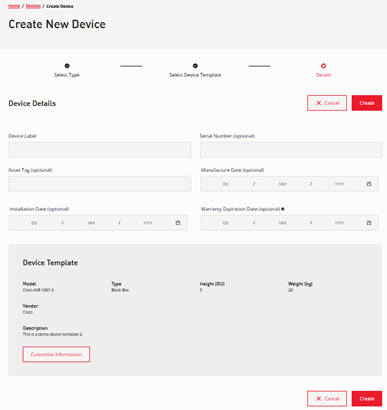
NOTE: Use the default information from the device template, or click Customise Information to customise the device information by editing the device template.
Update the information as required.
To create a new device template using the updated information, select .
. - Enter/update the information.
- Click Create to add the device or click Cancel to quit without saving.
- ONEDC adds the device and shows a confirmation message.
- Click Okay to return to the list of devices or click Manage to review and update the device information.
NOTE: For powered devices, ONEDC sets the information as read only: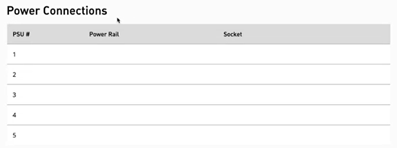
After installing the device, you can edit the information.
To manage the device:
- Click Edit to update the device information.
- Use the File Manager to upload a Front Image and Back Image for the device.
- Manage power connections for powered devices
- Manage network connections for connected devices
- Manage chassis module information for chassis devices.