
You can manage rack access permissions via groups. Rack access for groups can be either Full Access with all capability, partial access with only limited capability or no capability.
To manage rack access for a group:
- In the Main Menu select User Management » Groups.
- Locate and open the group.
- In the Racks area, click Manage Access.
- ONEDC shows the Rack Access page:
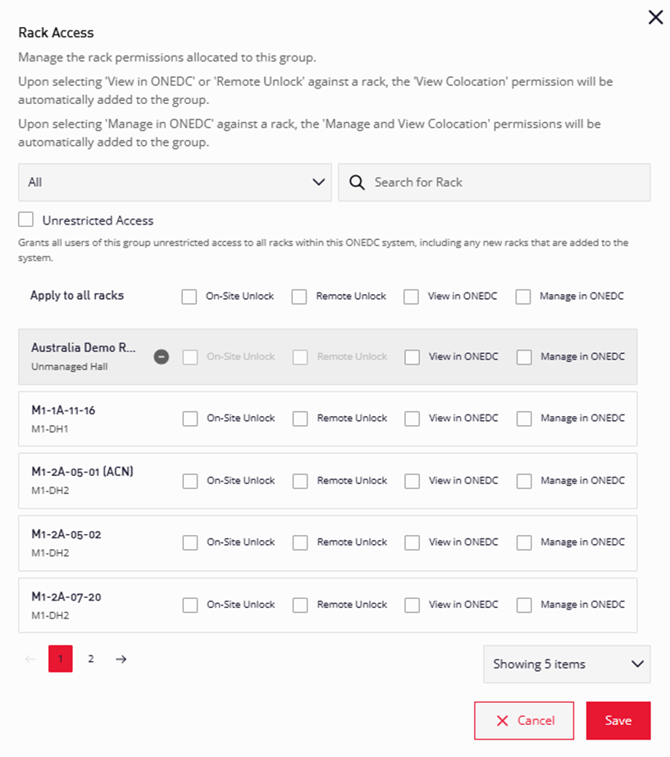
- ONEDC has the following rack permissions:
Permission
Description
On-site unlock
Users can unlock racks while on-site.
Remote Unlock
Users can unlock racks remotely.
View in ONEDC
Users can view rack information in ONEDC.
Manage in ONEDC
Users can view and update rack information in ONEDC.
- Set the access:
Access
Description
Unrestricted access
Select Unrestricted access.
IMPORTANT! Unrestricted access is for all users in ONEDC, including any new racks added to the system.
Specific access
De-select the Unrestricted access checkbox and set the rack access permissions for specific racks.
NOTES:
Select Apply to all racks to apply the selected rack permissions to all racks:

If you select View in ONEDC or Remote Unlock for a rack, ONEDC automatically adds the View Colocation permission to the group. If you select Manage in ONEDC for a rack, ONEDC automatically adds the Manage and View Colocation permissions to the group. - Click Save to update the access or click Cancel to quit without saving.
- ONEDC synchronises the updated permissions to all members of the group.
- After synchronisation completes, ONEDC shows the updated permissions for the rack.
- The updated permissions are immediately available.