
You can search to locate specific information and use pre-defined filters to reduce the number of matching results.
You can search using:
- Global search bar – to search across all ONEDC information including feature, functionality and Knowledgebase articles.
- Feature-specific search – to search within a specific area such as Users, Requests and Groups. Feature specific search ONEDC restricts the search to the selected area by default.
For example, if you search in the Users area, ONEDC will restrict the search to the User profile information and only return matching user results.
For all search, ONEDC uses a wildcard approach and returns all matches that contain the term. For example, searching for “avi” returns Tom Davis, Ravi Singh and Ben Savier.
To search using Global Search:
- In the Main Menu select the Search magnifying glass icon.
- Enter your search term in the search window that appears and click Search.
- ONEDC returns results across all areas including access to ONEDC activities and functions, Knowledge articles, etc.
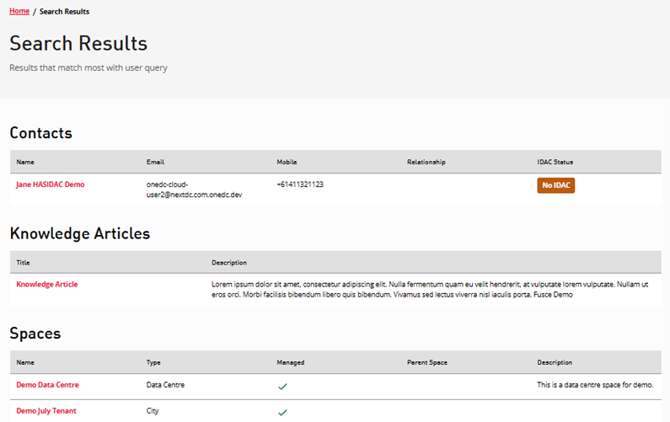
To search using a feature-specific search (e.g. search for a user):
- Enter the relevant area of ONEDC
- Enter a Search term in the search bar visible on the screen and press enter.

ONEDC shows the results that match the search criteria. Results may include links to access detailed information which you can click to access that information. 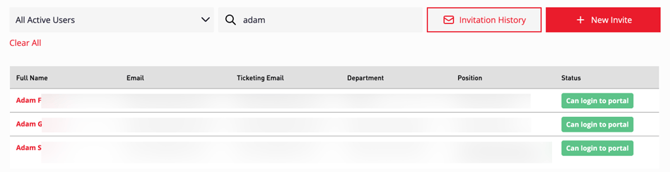
To filter to reduce the number of matching results:
- ONEDC will automatically show the available filters when available.
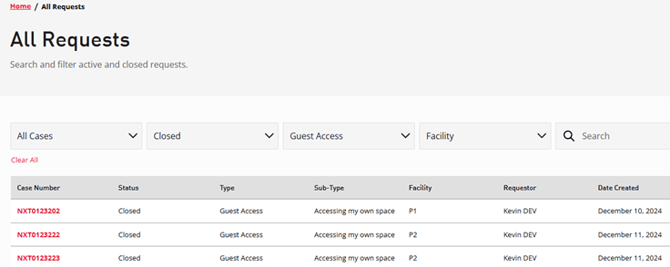
- Select a Filter
- Filters are cumulative. ONEDC immediately filters the displayed results as additional filters are In this example, ONDC will initially filter to show cases with a Status of Closed AND, for the Case Type of Guest Access, AND for the selected Facility.
If you enter a search term, ONEDC will apply the filters and show the entries that match the search term. - To clear all the filters and search terms, click Clear All.