
You can view all requests for your tenancy and update a request to send/receive information from NEXTDC via case comments and supporting files.
To show and update a request:
- Locate the request by selecting Requests » All Requests in the Main Menu.
NOTE: You can also search and filter to find a specific request.
Filter
Description
Case type
One of:
- All Cases – to show all cases for the tenancy, or
- My Cases – to show cases that you have raised.
Status
One of:
- Closed – request successfully completed
- Closed – Cancelled – request was cancelled
- Closed – Error – request was closed as opened in error
- In Progress – request in progress
- New – new request
Type
Colocation, Connectivity, Contractor Access, Delivery Booking, General Service, Guest Access, Induction, Manage IDAC, Quick Booking, Remote Hands, Service Request, Tenancy Onboarding.
See What are requests for more information.
Facility
Relevant Facility for the request
- To view a specific request, click the Case Number ONEDC shows the request status, request summary and related information (inc. case comments and files).
- To update the request:
Task
Information
Communicate with NEXTDC - Add a Case Comment
Click Add.
Enter the Case Comment and click Save to add the case comment or click Cancel to quit without saving.
ONEDC adds the case comment and notifies NEXTDC to action.
Case Comments are shown in reverse chronological order with the latest comment at the top of the list.
Receive information from NEXTDC – Case Comment response
When NEXTDC respond, ONEDC adds the information to the Case Comments:

The user will also be notified via email: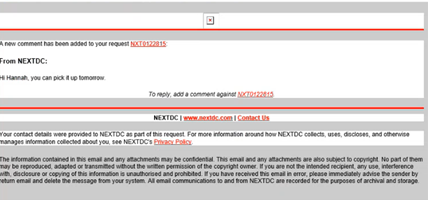
Add a file
Click Add.
Use the File Manager to upload a file.
ONEDC adds the file.
Download a file
Click the file link. ONEDC downloads the file to your Downloads directory.
- ONEDC automatically updates the request with the information.